Zoom Phone
To use Zoom Phone you must be a staff or faculty member with a Zoom Phone License and phone number assigned to you.
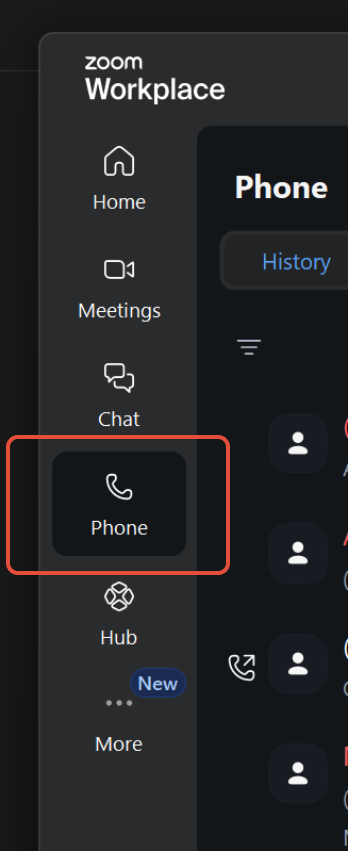
If you have an extension assigned to you, you can open the Zoom App and find the Phone Tab.
Voicemail
Existing voicemail messages on Mitel or Dialpad will not transfer to Zoom Phone. If there are voicemail messages you need to retain, please save them prior to the migration date.
Once your phone service has been migrated, voicemail messages will be accessed directly through the Zoom application.
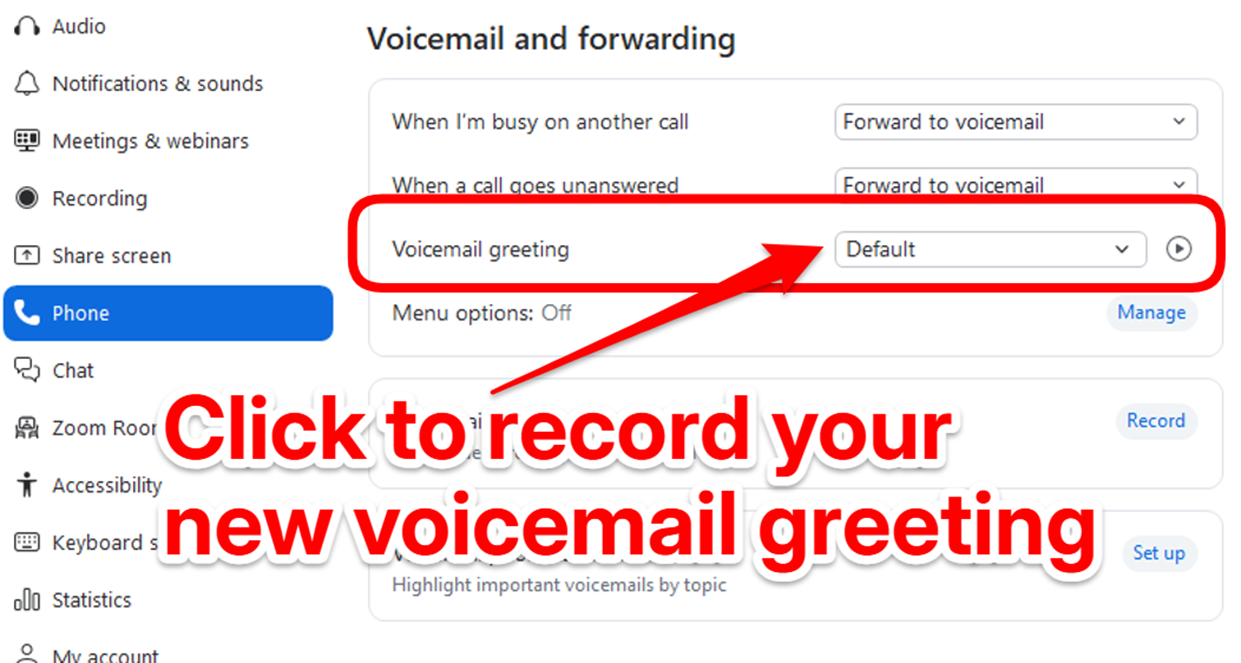
You will need to re-record your Voicemail greeting message. Follow the instructions in the picture above to add a new recording.
- Launch the Zoom App
- Open Settings > Phone Tab
- Go to Voicemail Greeting.
- Click drop down menu that says Default.
- Click Add New Greeting.
- You can choose to upload an audio file OR re-record one with your computer microphone.
- When done, make sure the settings menu shows your new audio recording.
Was this article helpful?
That’s Great!
Thank you for your feedback
Sorry! We couldn't be helpful
Thank you for your feedback
Feedback sent
We appreciate your effort and will try to fix the article